Set up your firm
Create your firm workspace, invite teammates, assign roles.
A firm workspace is the root of everything in Kiravy. Every client, every transaction, every agent belongs to one firm. If your accounting practice handles books for 30 SMEs, those 30 are clients — and they all live inside the one firm workspace.
This page covers everything from creating the firm to inviting your team.
Concepts
| Term | What it means |
|---|---|
| Firm (workspace) | Your accounting practice. One per practice. |
| Member | Someone in your firm who signs into Kiravy. |
| Role | What a member is allowed to do (Partner / Manager / Staff / Viewer). |
| Client | One SME whose books you do. A firm has many clients. |
| Assignment | A staff or viewer member is assigned to specific clients — they only see those. Partners and Managers see every client. |
Firm vs client. Don't mix these up. Your firm is Lee Wei Tech & Associates — the one practice. Mamak Pelita Sdn Bhd is a client. The firm has many clients; clients don't have clients.
Creating the firm
Done during signup — after verifying your email and logging in, a setup wizard opens automatically. The first step asks for your firm name. If you closed the wizard without saving a name, or want to update it later:
Settings → Profile → edit the firm name → Save
If you want to create a second firm:
- Click your avatar (bottom-left of the sidebar) → Switch workspace → Create new firm
- Enter the firm name
- You'll start as the Partner of the new firm
You can be a member of multiple firms (e.g. if you advise two practices) and switch between them from the avatar menu.
Roles
Four roles, with strictly decreasing power:
Partner
- Full access to everything in the firm
- Can edit firm settings, integrations, and billing
- Can invite, remove, and change roles of members
- Can delete the firm (irreversible — see Archive & delete)
There's always at least one Partner. If you're the only one, you can't downgrade yourself.
Manager
- Same as Partner except can't delete the firm or remove Partners
- Use this for senior accountants who run day-to-day but shouldn't have nuclear options
Staff
- Sees only the clients they're assigned to
- Can edit transactions, upload receipts, review entries for assigned clients
- Cannot manage firm settings or assign other staff
Viewer
- Sees only assigned clients
- Read-only — useful for trainees or external auditors looking over your work
- Cannot edit transactions, upload receipts, change anything
Full role matrix lives at Roles & permissions.
Inviting members
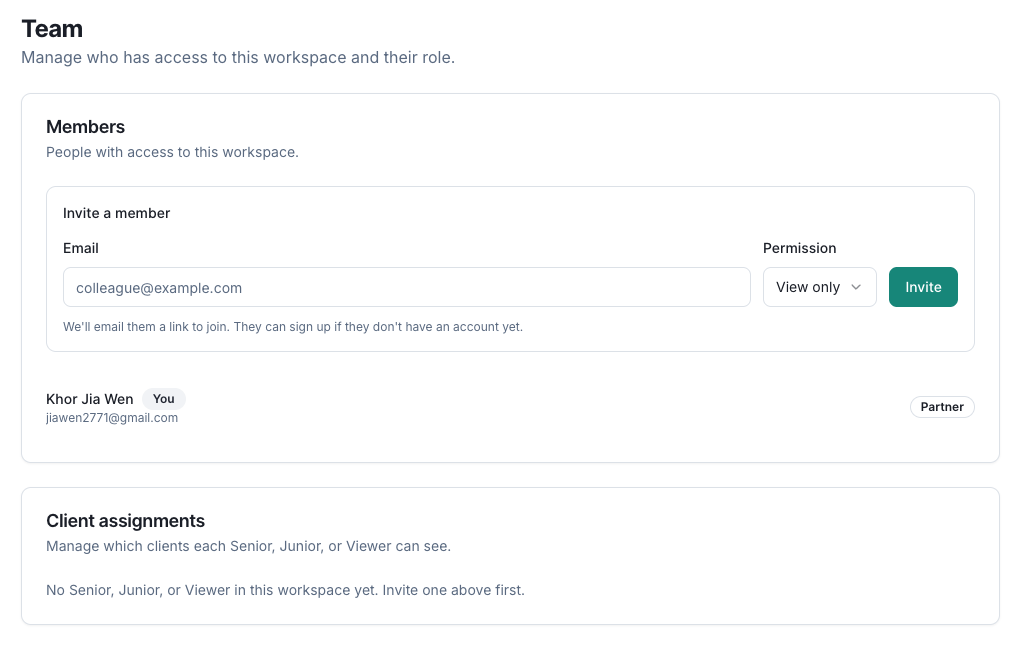
You can invite teammates during the signup wizard (Step 2 of the wizard), or at any time afterward:
- Settings (avatar menu, bottom-left sidebar) → Team
- Invite member → enter email + pick role → Send invite
- The invitee gets an email with a link valid for 7 days
- Once they click → set their password → they're in
The invite shows up in your Team page as Pending until accepted. You can revoke (cancel) it from the same screen if you sent it to the wrong address.
Assigning staff and viewers to clients
Partners and Managers don't need to be assigned — they see all clients automatically. Staff and Viewers see nothing until assigned.
- Open the client → Settings → Team
- Add assignment → pick a Staff or Viewer member
- They now see this client in their Clients list
To unassign: click the X next to their row. Their data history is preserved (transactions they created keep their authorship); they just can't see the client anymore.
Don't share logins. Each accountant should have their own member account. Otherwise the who created this transaction trail is useless for review, and removing one person means rotating credentials for everyone.
Changing the firm name or logo
Firm settings → Profile. Editable by Partners. Logo uploads land in Supabase Storage; max 2 MB, square is best.
What's next
- Add your first client so the firm actually has work in it
- Decide how data comes in — manual entry, CSV import, or Receipts (OCR)
- Read about Roles & permissions before inviting staff